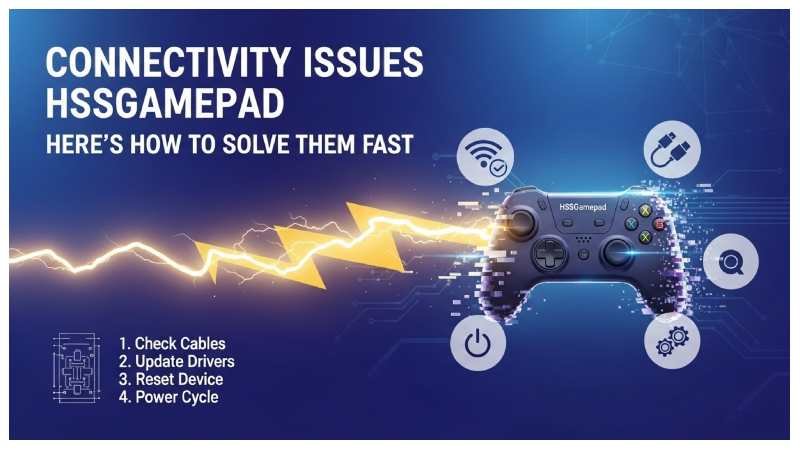
The HSSGamepad is designed to deliver a smooth and responsive gaming experience across multiple platforms, including PCs, smartphones, and gaming consoles. However, like any wireless device, it can sometimes face connectivity issues that interrupt gameplay. These problems may range from the controller not pairing with your device to sudden disconnections or delayed input responses.
Connectivity issues are frustrating because they often occur unexpectedly, even when the device was working perfectly before. Whether you’re a casual gamer or a competitive player, even a small interruption can significantly affect your performance and overall experience.
1. Why Stable Connectivity Matters for Gaming Performance
Stable connectivity is essential for precise control and real-time responsiveness. In fast-paced games, every millisecond counts. A slight delay in input or a temporary disconnection can mean the difference between winning and losing.
Moreover, consistent connectivity ensures:
- Smooth gameplay without interruptions
- Accurate and real-time input detection
- Better immersion in the gaming environment
- Reduced frustration during long gaming sessions
Understanding and resolving connectivity issues is key to maintaining peak performance and enjoying your HSSGamepad to its fullest potential.
2. Common Connectivity Issues
Gamepad Not Pairing with Device
One of the most common problems users face is the inability to pair the HSSGamepad with their device. This can happen due to incorrect pairing procedures, Bluetooth issues, or compatibility problems. The device may not appear in the list of available connections, or pairing attempts may fail repeatedly.
Frequent Disconnections
Another frustrating issue is when the controller connects successfully but disconnects randomly during gameplay. This can disrupt your session and force you to reconnect multiple times.
Input Lag or Delayed Response
Input lag occurs when there is a noticeable delay between pressing a button and seeing the action on the screen. This issue is particularly problematic in action-packed or competitive games where timing is critical.
Device Not Recognizing the Controller
Sometimes, even after a successful connection, the device may fail to recognize the controller properly. This means buttons or joysticks may not function as expected, or the gamepad might not work at all within certain applications.
3. Possible Causes of Connectivity Problems
Bluetooth Interference
Wireless signals can be affected by interference from other devices such as Wi-Fi routers, wireless headphones, or even other Bluetooth controllers. This interference can weaken the connection or cause instability.
Low Battery or Power Issues
A low battery can significantly affect the performance of your HSSGamepad. When power levels drop, the controller may struggle to maintain a stable connection, leading to lag or disconnections.
Outdated Firmware or Drivers
Using outdated firmware or device drivers can lead to compatibility issues. Software updates frequently deliver patches for glitches along with optimizations that improve connection stability and overall performance.
Compatibility Issues with Devices
Not all devices support every controller equally. Differences in operating systems, Bluetooth versions, and hardware capabilities can result in connectivity challenges.
Physical Obstructions or Range Limitations
Physical barriers like walls, large objects, and even your own body can interfere with and weaken Bluetooth signals. Additionally, exceeding the recommended range can weaken the connection, causing lag or disconnections.
4. Basic Troubleshooting Steps
Restarting the Gamepad and Device
A quick reboot often clears temporary glitches and restores a stable connection. Turn off your HSSGamepad and the device you’re connecting to, wait a few seconds, and then turn them back on. This helps reset temporary glitches.
Re-pairing the Controller
Remove the gamepad from your device’s list of paired devices and pair it again from scratch. This can fix issues caused by corrupted pairing data.
Checking Battery Levels
Ensure that your controller has sufficient battery power. When the battery level is low, fully recharge it before trying to establish the connection again.
Ensuring Bluetooth is Enabled and Working
Double-check that Bluetooth is turned on and functioning properly on your device. You can test this by connecting another Bluetooth device to see if it works correctly.
5. Advanced Fixes
Updating Firmware and Drivers
Check for firmware updates for your HSSGamepad and install the latest drivers on your device. Updated software ensures better compatibility and improved performance.
Resetting the HSSGamepad
Most controllers come with a reset option, usually a small button that restores factory settings. Resetting can resolve persistent connectivity issues.
Clearing Bluetooth Cache
On some devices, especially smartphones, clearing the Bluetooth cache can help eliminate connection problems. This removes outdated or corrupted data that may interfere with pairing.
Adjusting System Settings for Better Connectivity
You can optimize system settings by:
- Disabling battery-saving modes that limit Bluetooth performance
- Prioritizing performance settings over power efficiency
- Turning off unnecessary background applications
6. Fixing Connectivity Issues on Different Devices
PC (Windows/Mac) Troubleshooting
On PCs, ensure that:
- Bluetooth drivers are updated
- The system recognizes the controller in device settings
- USB ports are functioning if using a wired connection
For Windows, you may also use the Device Manager to troubleshoot hardware issues. On Mac, ensure compatibility and check Bluetooth preferences.
Android Device Fixes
For Android users:
- Turn Bluetooth off and on again
- Clear Bluetooth cache from system settings
- Restart the phone
- Ensure the device supports external controllers
iOS Device Fixes
On iOS devices:
- Make sure the operating system is updated
- Reconnect the controller via Bluetooth settings
- Forget and re-add the device if needed
Console-Specific Solutions
For gaming consoles:
- Ensure the controller is compatible with the console
- Use the correct pairing method
- Update console firmware regularly
7. Reducing Input Lag and Improving Stability
Optimizing Bluetooth Settings
Keep your device close to the controller and ensure Bluetooth is not overloaded with multiple connections. Disconnect unused devices to improve performance.
Minimizing Interference from Other Devices
Reduce interference by:
- Turning off nearby Bluetooth devices
- Moving away from Wi-Fi routers
- Avoiding crowded wireless environments
Using Wired Connection as an Alternative
If wireless connectivity continues to cause issues, consider using a wired connection. This eliminates interference and provides a stable, lag-free experience.
8. When to Seek Professional Help
Identifying Hardware Defects
If none of the troubleshooting steps work, the issue may be hardware-related. Signs include:
- Controller not powering on
- Buttons not responding
- Persistent disconnection despite fixes
Contacting Customer Support
Reach out to the manufacturer’s support team for assistance. Provide details about the issue and the steps you’ve already tried.
Warranty and Replacement Options
If your HSSGamepad is still under warranty, you may be eligible for a repair or replacement. Always check warranty terms before attempting major fixes.
9. Preventive Measures
Regular Firmware Updates
Keep your controller and device updated to ensure compatibility and performance improvements.
Proper Storage and Handling
Avoid exposing your gamepad to extreme temperatures, moisture, or physical damage. Proper care extends the device’s lifespan.
Maintaining Optimal Battery Health
Charge your controller regularly and avoid letting the battery drain completely. Use recommended chargers to prevent damage.
10. Conclusion
Summary of Fixes
Connectivity issues with the HSSGamepad can arise from various factors, including interference, low battery, outdated software, and compatibility problems. By following both basic and advanced troubleshooting steps, most issues can be resolved quickly.
Final Tips for Maintaining Stable Connectivity
To ensure a smooth gaming experience:
- Keep your devices updated
- Maintain a strong and interference-free connection
- Regularly check battery levels
- Use wired connections when necessary
By taking these proactive steps, you can minimize connectivity issues and enjoy uninterrupted, high-performance gaming with your HSSGamepad.