
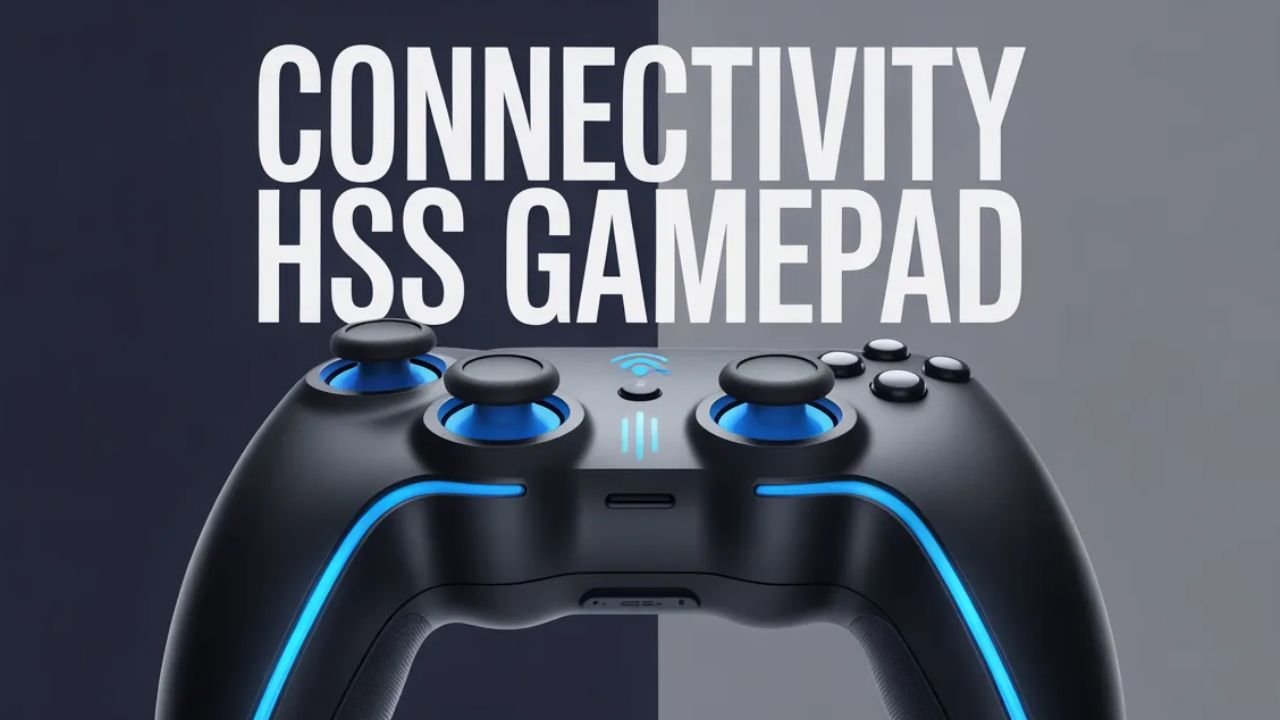
Gaming today is no longer limited to a single device or platform. Players switch between mobile phones, PCs, and even smart TVs depending on their preferences. In this flexible gaming environment, a reliable controller becomes essential, and that is where the HSS gamepad comes into play. However, owning a good controller is only half the equation. The real performance depends on how well it connects and communicates with your device.
Connectivity in an HSS gamepad directly impacts responsiveness, accuracy, and overall gameplay experience. A slight delay or unstable connection can ruin competitive matches or fast-paced gameplay. This guide focuses on how HSS gamepad connectivity works, how to set it up properly, and how to optimize it for the best performance across different devices.
Types of Connectivity in HSS Gamepad
Understanding the connection types is the foundation of using your gamepad efficiently. HSS gamepads typically offer multiple connectivity modes, each designed for different use cases.
Bluetooth Connectivity
Bluetooth is the most common wireless method used in modern gamepads. It allows users to connect their HSS gamepad to smartphones, tablets, and laptops without any physical cables.
The advantage of Bluetooth is convenience. You can connect quickly, move freely, and avoid cable clutter. However, Bluetooth performance depends on signal strength and interference. Walls, other wireless devices, and even distance can affect its stability.
Wired (USB) Connection
A wired connection provides a direct link between the gamepad and your device using a USB cable. This is the most stable and reliable option.
With wired connectivity, there is almost zero input delay, making it ideal for competitive gaming. It also eliminates battery concerns since the controller draws power directly from the device. The downside is reduced mobility due to the cable.
2.4GHz Wireless Dongle
Some HSS gamepads come with a USB dongle that uses a 2.4GHz wireless connection. This method combines the benefits of both wired and wireless setups.
It offers lower latency compared to Bluetooth and a more stable connection. This makes it a preferred option for gamers who want wireless freedom without compromising performance.
How to Connect HSS Gamepad to Different Devices
Each device type requires a slightly different setup process. Knowing the correct method ensures a smooth connection without unnecessary troubleshooting.
Connecting to Android Devices
To connect your HSS gamepad to an Android phone:
- Turn on Bluetooth on your phone
- Press and hold the pairing button on the gamepad
- Select the gamepad from the Bluetooth device list
Once connected, most modern Android games automatically detect the controller. For unsupported games, you may need third-party mapping apps.
Connecting to iPhone (iOS)
iOS devices support limited controller profiles, so compatibility is important.
- Enable Bluetooth on your iPhone
- Put the gamepad into pairing mode
- Select it from the available devices
After pairing, you can use it with supported games from the App Store. Ensure your iOS version is updated for better compatibility.
Connecting to PC (Windows)
For PC gaming, you have multiple options:
- Plug in via USB cable for instant connection
- Use Bluetooth through Windows settings
- Insert a 2.4GHz dongle for wireless connection
Windows usually installs drivers automatically, but sometimes you may need to configure settings in the control panel or gaming software.
Connecting to Gaming Consoles
Compatibility with consoles depends on the specific HSS model. Some support consoles directly, while others may require adapters. Always check compatibility before attempting connection.
Step-by-Step Setup Guide
A proper setup ensures your gamepad works efficiently from the start.
- First, power on the gamepad and activate pairing mode. This usually involves holding a specific button combination. Next, enable Bluetooth or connect the USB cable depending on your chosen method.
- After pairing, confirm the connection by checking device settings. Finally, test the gamepad in a game or controller testing tool to ensure all buttons and analog sticks are functioning correctly.
Common Connectivity Issues and Fixes
Even high-quality controllers can face connection problems. Understanding common issues helps you resolve them quickly.
- One common issue is the gamepad not appearing in the Bluetooth list. This usually happens if pairing mode is not activated properly. Restarting both the controller and the device often fixes the problem.
- Input lag is another issue, especially in wireless mode. Reducing distance, closing background apps, or switching to a wired connection can improve performance.
- Frequent disconnections may be caused by low battery or signal interference. Keeping the controller charged and avoiding crowded wireless environments can help maintain a stable connection.
Tips to Improve Connectivity Performance
To get the best performance from your HSS gamepad, a few optimization techniques can make a significant difference.
- Keep your controller within a reasonable range of your device. Wireless signals weaken over distance, leading to lag or disconnections.
- Updating firmware and drivers ensures compatibility and performance improvements. Manufacturers often release updates to fix bugs and enhance connectivity.
- Minimize interference by keeping other wireless devices away. Routers, Bluetooth headphones, and even microwaves can disrupt signals.
- If you are serious about gaming, consider using a wired or 2.4GHz connection instead of Bluetooth for better responsiveness.
Compatibility and Requirements
Not all devices support every type of gamepad connectivity. It is important to understand compatibility before using your HSS gamepad.
- Most modern Android devices support Bluetooth controllers without issues. iOS devices require specific controller standards, so not all features may work.
- On PC, compatibility is generally broad, especially with Windows systems. However, older systems may require manual driver installation.
- Checking system requirements and supported platforms ensures a smooth experience without unexpected limitations.
Wired vs Wireless – Which is Better?
Choosing between wired and wireless depends on your gaming style and priorities.
- Wired connections provide maximum stability and zero lag, making them ideal for competitive players. They are also simple to set up and do not rely on batteries.
- Wireless connections offer freedom of movement and a cleaner setup. They are perfect for casual gaming or playing from a distance.
- For the best balance, many gamers prefer the 2.4GHz wireless option, which delivers low latency while maintaining wireless convenience.
Safety and Maintenance Tips
Maintaining your HSS gamepad ensures long-term performance and reliable connectivity.
- Avoid bending or pulling cables forcefully, as this can damage internal wiring. For wireless controllers, take care of the battery by avoiding overcharging.
- Keep the gamepad clean and free from dust, especially around buttons and ports. Store it in a safe place when not in use to prevent physical damage.
- Regular maintenance not only improves durability but also ensures consistent connectivity performance.
Conclusion
HSS gamepad connectivity plays a crucial role in delivering a smooth and enjoyable gaming experience. Whether you choose Bluetooth, wired, or 2.4GHz wireless, each method has its own strengths and limitations.
By understanding how each connection type works, setting up your controller correctly, and applying simple optimization tips, you can significantly enhance your gameplay. A stable connection means better control, faster response, and ultimately, a more immersive gaming experience.
Choosing the right connectivity method based on your device and gaming needs is the key to unlocking the full potential of your HSS gamepad.